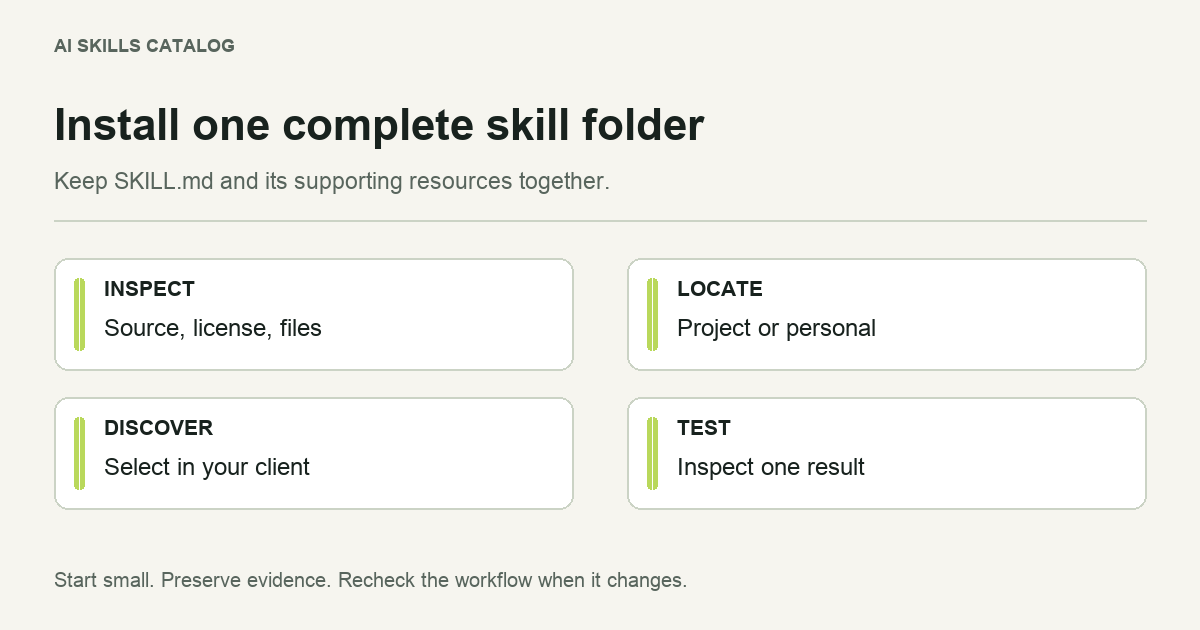
To install a Claude skill in a coding agent, keep its SKILL.md and supporting files together, put the folder in a location your client discovers, and test one limited task. The installation path changes by client. The underlying skill may also require tools that a ZIP cannot provide.
This guide covers local Claude Code, Codex, Cursor and Gemini CLI. A Claude web-app skill, a custom GPT and a Gemini app Gem have different installation interfaces; copying files to a CLI directory does not configure those products.
1. Inspect the download
Open the source linked from the listing and compare its author, license and file tree with the package. Extract into a temporary directory first. Follow references from the main file to scripts, templates and documents. Read executable files before running them.
Suppose the ZIP contains this folder:
report-review/
  SKILL.md
  references/checklist.md
  assets/report-template.md
Move report-review as a unit. A common mistake is to leave the skill one directory too deep, such as skills/download/report-review/SKILL.md, or to copy the Markdown file while leaving its template behind.
2. Choose project or personal scope
A project copy travels with the repository and can be reviewed with other code changes. A personal copy is useful across your local projects. Install one copy deliberately before experimenting with several locations: duplicate names make it harder to know which procedure ran.
| Client | Project folder | Personal folder |
|---|---|---|
| Claude Code | .claude/skills/ | ~/.claude/skills/ |
| Codex | .agents/skills/ | ~/.agents/skills/ |
| Cursor | .cursor/skills/ or .agents/skills/ | ~/.cursor/skills/ or ~/.agents/skills/ |
| Gemini CLI | .gemini/skills/ or .agents/skills/ | ~/.gemini/skills/ or ~/.agents/skills/ |
For a project-scoped Claude Code installation, the resulting file is .claude/skills/report-review/SKILL.md. A personal Codex copy becomes ~/.agents/skills/report-review/SKILL.md. Keep the rest of each folder beside that file.
3. Confirm discovery in your client
Claude Code: invoke /report-review or ask for a matching task. Use the actual installed skill name rather than the name of the downloaded ZIP.
Codex: open /skills in the CLI or mention the skill with $report-review. Codex detects skill changes automatically; restart it if the new entry does not appear. The Codex-specific walkthrough covers additional checks.
Cursor: start a new session and type / in Agent chat to select the skill. Local personal skills do not automatically travel to remote workers. For a team workflow, prefer the repository copy. See the Cursor installation walkthrough.
Gemini CLI: run /skills reload, then /skills list. Review its activation consent prompt when the workflow is selected.
4. Check behavior with a small example
For the report-review example, supply a short report with one deliberate omission and ask for findings tied to the checklist. Inspect whether the agent read the supporting reference, found the omission and produced the requested format.
Do not use production credentials merely to prove discovery. A task that needs a connector should first explain which connection and data it requires. A task that edits files can start on a disposable branch with a known diff.
If the skill appears but does not work
- Missing reference: check that the entire source folder was copied and relative paths were preserved.
- Unknown command: inspect the source for a client-specific tool or a dependency that is not installed.
- Wrong workflow: inspect the description and duplicate skill names before adding more instructions.
- Different results across clients: compare available tools, permissions and inputs. Format support alone does not establish equivalent behavior.
Keep the source URL and revision with your copy. Recheck changed scripts and access requirements on updates. The security checklist gives you a repeatable adoption review.